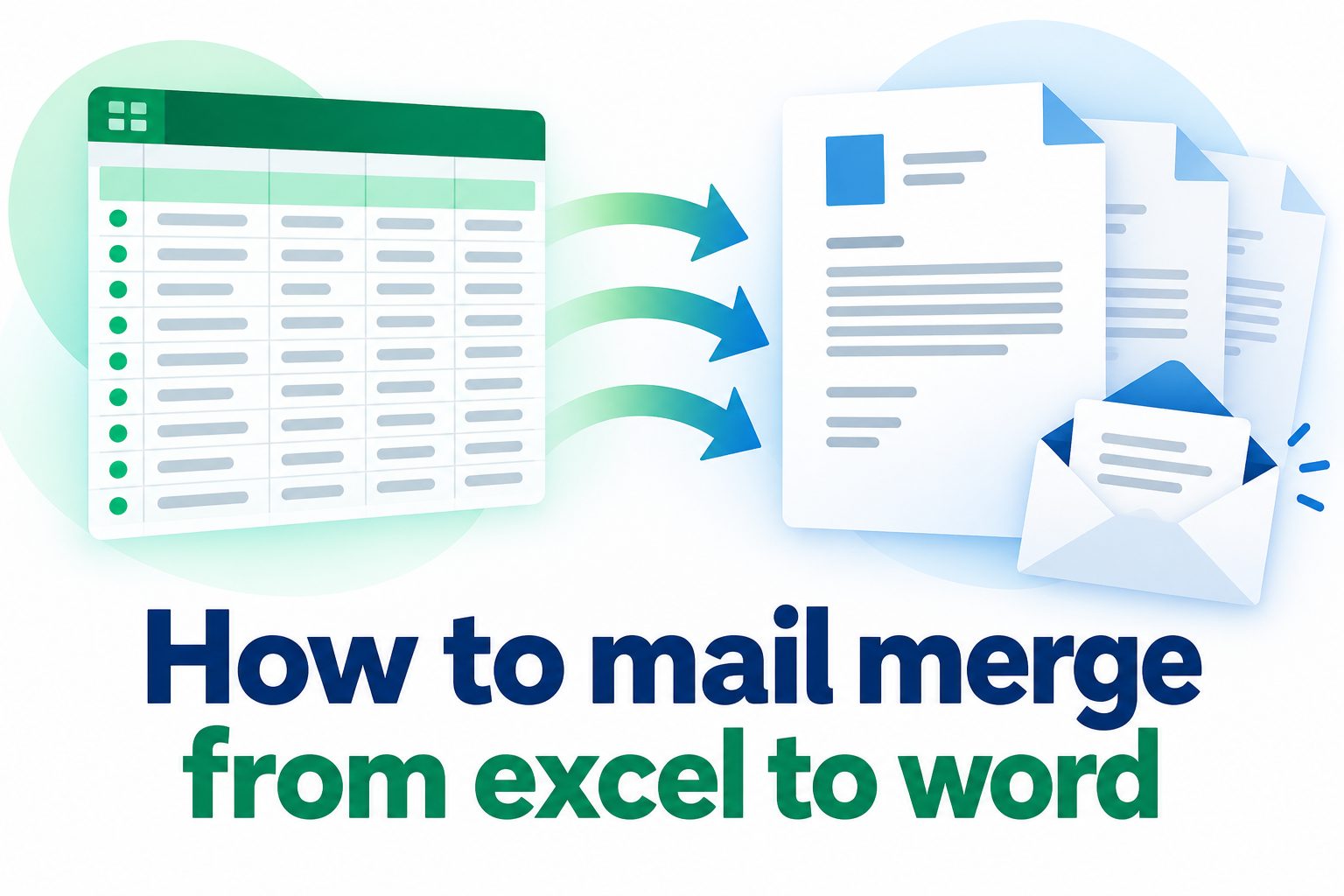
Learning how to mail merge from Excel to Word can save hours when you need to create personalized letters, labels, certificates, invoices, or emails. Instead of copying and editing the same document for every recipient, mail merge combines one Word template with a list of details stored in Excel.
The process is easier than it first appears. Excel holds the changing information, such as names, addresses, dates, order numbers, or job titles, while Word controls the layout and message. Each row in the spreadsheet becomes one personalized version of the document.
This guide explains how to prepare your Excel file, connect it to Word, insert merge fields, review results, and complete the merge confidently. It also covers common mistakes, practical examples, and useful checks that help your documents look accurate and professional.
Mail merge is a feature in Microsoft Word that automatically adds unique data to a standard document. It is useful whenever the main message remains the same but selected details need to change for each person.
Excel is commonly used as the data source because it keeps information organized in rows and columns. A single row represents one recipient, while each column represents a field, such as First Name, Last Name, City, or Membership Number.
Word uses merge fields to identify where Excel data should appear in the template. For example, a greeting can contain a First Name field so that every letter opens with the correct recipient name.
The method improves consistency because the same approved template is used for every record. It also reduces manual typing, which lowers the chance of spelling errors, missing details, and inconsistent formatting.
Mail merge works best when your list is clean, your fields are clearly named, and you test the document before creating the final set. A few minutes of preparation can prevent mistakes across hundreds of documents.
How Do You Mail Merge From Excel To Word?
Prepare A Clear Excel Data File
Start by placing all recipient information in one worksheet. Use the first row for column headings, such as First Name, Last Name, Address, City, Postal Code, and Reference Number. Keep one recipient on each following row, avoid blank rows in the middle of the list, and save the workbook before opening Word.
Create Or Open The Word Template
Open the Word document that will become your master template. This document should contain the text, formatting, logo-free layout, and placeholders for details that change. Write the message as if it were going to one person, leaving space where names, addresses, dates, or other personalized information will appear.
Choose The Correct Mail Merge Type
In Word, use the Mailings tab and begin the mail merge process. Choose the document type that matches your goal, such as letters, mailing labels, envelopes, directories, or email messages. Selecting the right type early helps Word show the proper layout options and merge controls.
Connect Word To The Excel Workbook
Select the option to choose an existing recipient list, then locate the saved Excel workbook. Word may ask you to select the worksheet or table containing your data. Choose the sheet with the column headings and confirm that the first row contains headers so Word can recognize each field correctly.
Insert Merge Fields In The Right Places
Place the cursor where personalized information should appear and insert the appropriate merge field. A greeting might use First Name, while an address block may use several fields. Add spaces, punctuation, and line breaks around fields carefully because Word uses the surrounding template text in every completed document.
Preview Individual Records Before Finishing
Use Preview Results to move through several records and inspect the document as recipients will see it. Check names with different lengths, missing optional details, and records that contain special characters. Previewing early makes it much easier to fix a field mapping or formatting issue before generating every document.
Complete The Merge And Save Output
When the preview looks correct, finish the merge by printing, creating separate documents, or sending email messages if that option applies. Creating an editable merged document is often safest because you can perform one final review. Save both the original template and the finished output for future reference.
What Should Your Excel Mail Merge List Include?
1. Use descriptive column headings that are easy to recognize in Word, including names such as First Name, Last Name, Company, and Event Date.
2. Store each type of information in its own column instead of placing full names or complete addresses into one field whenever you may need separate formatting.
3. Format postal codes, account numbers, and identification values as text when leading zeros must remain visible in the final Word document.
4. Remove duplicate recipients and outdated rows before connecting the worksheet to Word, especially when the merge will be sent externally.
5. Keep optional fields consistent by using a clear blank value where data is unavailable, then preview how those blank fields affect the Word template.
Why Mail Merge From Excel To Word Is Useful
- Faster document creation: Mail merge produces many personalized documents from a single template, reducing repetitive copy-and-paste work.
- More consistent formatting: Every recipient receives the same approved wording, layout, font treatment, and document structure.
- Fewer manual errors: Using spreadsheet fields reduces the risk of retyping names, addresses, dates, and reference numbers incorrectly.
- Easy list updates: You can revise the Excel worksheet and run the merge again without rebuilding the Word document.
- Better personalization: Adding a name, location, order detail, or relevant date makes routine communication feel more direct and useful.
- Flexible output options: The same data can support letters, labels, envelopes, directories, certificates, and selected email campaigns.
How Can You Avoid Mail Merge Errors?
Use Simple And Consistent Headers
Column names should be short, specific, and consistent. Avoid headings that differ only slightly, such as Client Name and Customer Name, unless both are genuinely needed. Clear headers make it easier to insert the correct merge field and reduce confusion when another person updates the file later.
Check Dates And Numbers Before Merging
Dates, currencies, percentages, and postal codes can display differently in Word than they do in Excel. Review a few records in the preview and confirm that dates use the intended format. If a value is sensitive to leading zeros, treat it as text in Excel before you merge.
Do Not Leave Accidental Blank Rows
Blank rows inside the Excel list can cause Word to stop early or include unexpected empty records. Remove empty rows and columns around the active data range. Keeping the worksheet compact also makes it easier to select the right data source when Word asks which table or sheet to use.
Handle Missing Information Gracefully
A blank field can leave awkward spaces, empty punctuation, or incomplete sentences in the final document. Decide whether every recipient must have that data, or create wording that still reads naturally when a field is empty. Preview records with missing details before completing the merge.
Test A Small Sample First
Before printing a large batch or sending messages, create a small set of merged documents. Review different record types, including long names, apartment addresses, and entries with optional information. A sample review catches layout problems that may not be obvious when you only inspect the blank template.
Keep The Source File Stable
Avoid renaming, moving, or heavily restructuring the Excel workbook after Word is connected to it. If the file location or field names change, Word may lose the connection or fail to find a merge field. Save copies with clear names when you need to preserve an earlier version.
Review The Final Output Carefully
Even a well-prepared merge needs a final quality check. Scan the completed file for incorrect greetings, broken lines, extra spaces, and records that appear incomplete. If the documents are important, ask a second person to review a sample because fresh eyes often notice errors faster.
Mail merge from Excel to Word is a practical way to turn a single document into many personalized communications without repeating the same editing work. The key is to keep the spreadsheet organized and the Word template carefully planned.
Prepare clean headers, connect the right worksheet, insert fields in logical places, and preview several recipients before finishing. These habits make the process reliable whether you are creating ten letters or thousands of labels.
Once you have used mail merge a few times, it becomes a dependable workflow for routine business, school, and personal documents. Careful preparation matters more than complex technical skills.
Keep your original Excel list and Word template saved separately from the completed merge. That simple practice makes future updates faster and helps you reuse an accurate process whenever new recipients are added.
FAQs About Mail Merge From Excel To Word
Can I Mail Merge From Any Excel File?
You can use most standard Excel workbooks as long as the data is organized in a clear table or worksheet. The first row should contain unique column headings, and each later row should represent one recipient. Save the workbook before connecting it to Word so the latest changes are available.
Why Are My Excel Dates Displaying Incorrectly In Word?
This usually happens because Excel stores dates as values while Word applies its own display format during the merge. Check the date field in preview mode, then adjust the Excel formatting or the merge field formatting if needed. Testing several records is important because date issues may not appear in every row.
Can I Create Mailing Labels With Mail Merge?
Yes, Word mail merge can create mailing labels from an Excel recipient list. Select Labels as the document type, choose the correct label manufacturer and product number, add fields to the first label, and update all labels. Preview the result to confirm that addresses fit within each label area.
What Happens If A Merge Field Is Blank?
Word leaves the field empty, which can create an awkward sentence, extra punctuation, or a blank line. Check your Excel data for required information and preview records with missing values. When blank fields are expected, write the template so that the surrounding text still reads naturally.
Can I Edit Documents After Completing The Merge?
Yes, if you choose the option to create individual merged documents, Word generates a new editable file containing the results. You can review or adjust a specific document there. However, changes made only in the output will not update the original template or Excel data source.
Should I Use One Full Name Column Or Separate Name Columns?
Separate First Name and Last Name columns are usually more flexible because they let you create formal greetings, casual greetings, sorting options, and custom name formats. A full name column can still work for simple documents, but separate columns give you more control when the template needs different wording.